
What it does
- The tank profile stores a main aquarium photo that appears prominently on the tank card and dashboard.
- Edit Tank lets the keeper preview the current image, replace it, or remove it before saving the tank record.
- Photo upload and cloud recovery are tied to the account and platform capabilities, while livestock, equipment, notes, and other modules maintain their own separate photo workflows.
Why you would use it
A tank name and volume identify an aquarium, but a current photo makes it immediately recognizable and creates visual context for aquascape, coral growth, algae, equipment placement, and long-term change. The main tank photo should represent the aquarium—not replace dated progress-photo records elsewhere.
How to use it
Start here: Open the correct tank, choose the More menu, select Edit Tank, then use Change Photo.
- Open the correct tank and choose the More menu in the top-right corner.
- Select Edit Tank and confirm that the current aquarium photo and tank details belong to the intended record.
- Choose Change Photo, then select a clear image of the aquarium or remove the current image when it is no longer appropriate.
- Review the resulting crop or preview when the platform presents one and avoid saving screenshots, labels, or unrelated personal images as the tank photo.
- Wait for any upload indicator to finish; Reef Trak prevents a premature save while the new photo is still being processed.
- Choose Save, return to the tank, and confirm that the intended hero image appears on the correct tank card.
Tank Photos screenshots
This capture comes from the current Reef Trak interface. Numbered callouts identify the key controls; the text guide carries the full workflow.
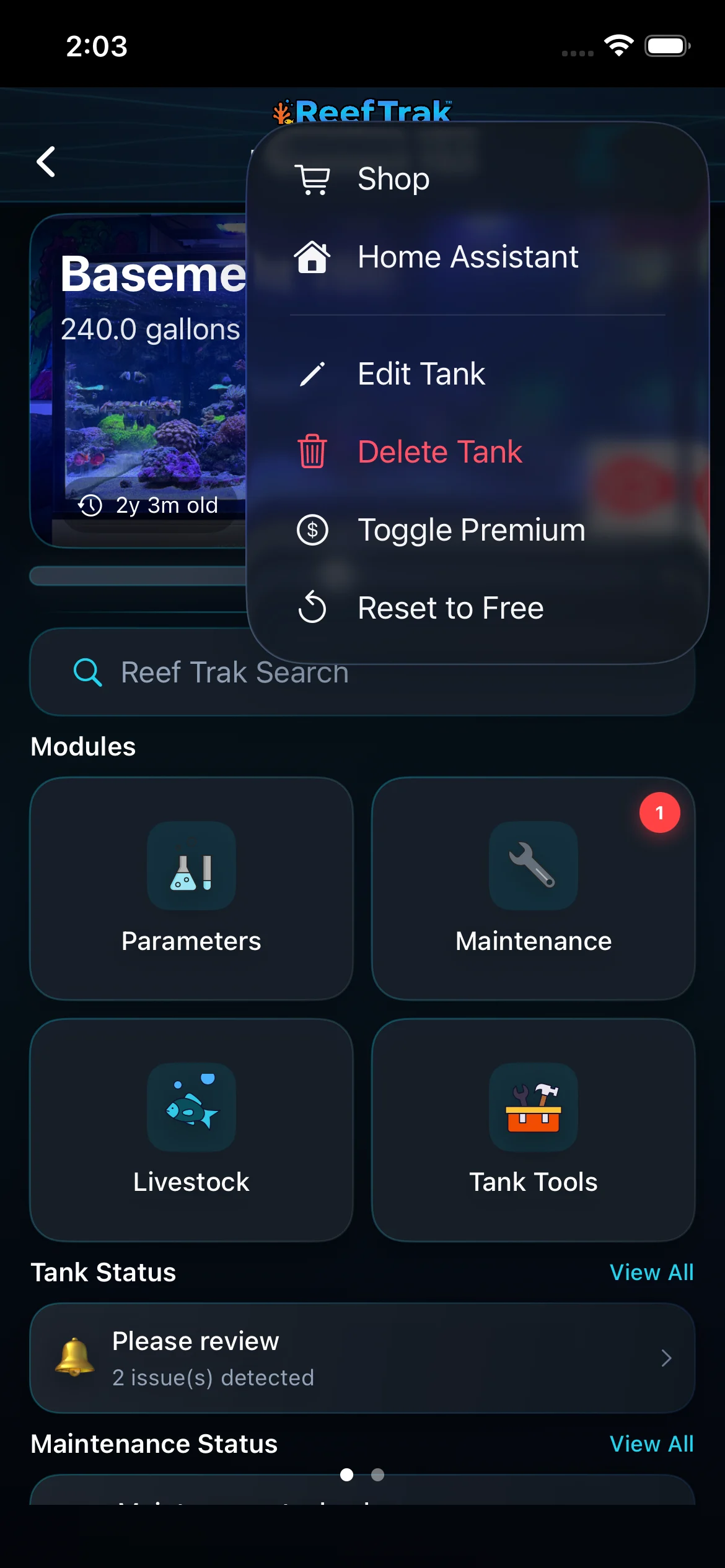 1
1
- Choose Edit Tank to manage the tank’s main photo.
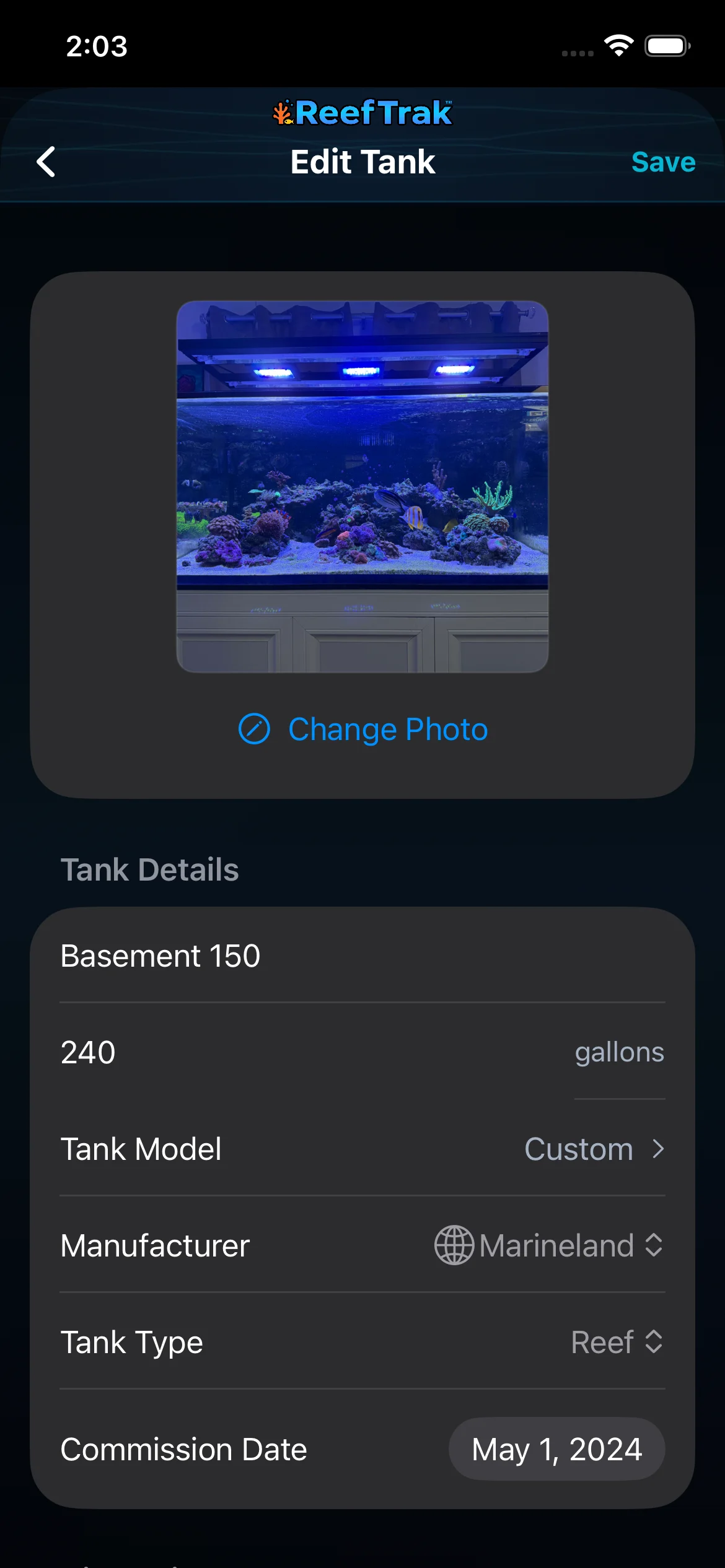 23
23
- Choose Change Photo to replace or remove the current tank image.
- Wait for any upload indicator to finish, then Save the tank record.
Example
After a major aquascape change, a keeper replaces the Basement 150 hero photo with a clear full-tank image. The dashboard now identifies the current layout, while dated livestock progress photos remain in their individual animal records.
Important details
- The main tank photo is different from livestock progress photos, equipment photos, note attachments, PAR Map images, or TrakShare publication choices.
- A selected image can be uploaded to the account’s cloud storage where supported. Use aquarium-only images and wait for processing before leaving the editor.
- Replacing the main photo changes the tank’s current hero image; use dated module-specific photo history when preserving a sequence matters.
Tank Photos frequently asked questions
When was Tank Photos introduced in Reef Trak?
Tank Photos was first documented in Reef Trak on December 15, 2024. The supporting chronology identifies it as a pre-launch version-controlled tank profile record.
How do I change my reef tank photo in Reef Trak?
Open the tank, choose More, select Edit Tank, and use Change Photo. Review the new image, wait for any upload indicator to finish, and then Save.
Where does the main aquarium photo appear?
The current tank photo appears on the tank card and tank dashboard, helping identify the aquarium and its present visual state.
Is the tank photo the same as coral or fish progress photos?
No. The main tank photo represents the aquarium profile. Livestock progress photos, equipment photos, note attachments, PAR Map images, and shared TrakShare photos use separate workflows.
Why can Save be unavailable after choosing a tank photo?
Reef Trak may process or upload the new image before writing the tank record. Wait for the upload indicator to finish so the saved record does not point to an incomplete photo.
Open in Reef Trak
The button opens this destination when the installed app supports it. The browser fallback offers only platforms where the current inventory confirms availability.