
What it does
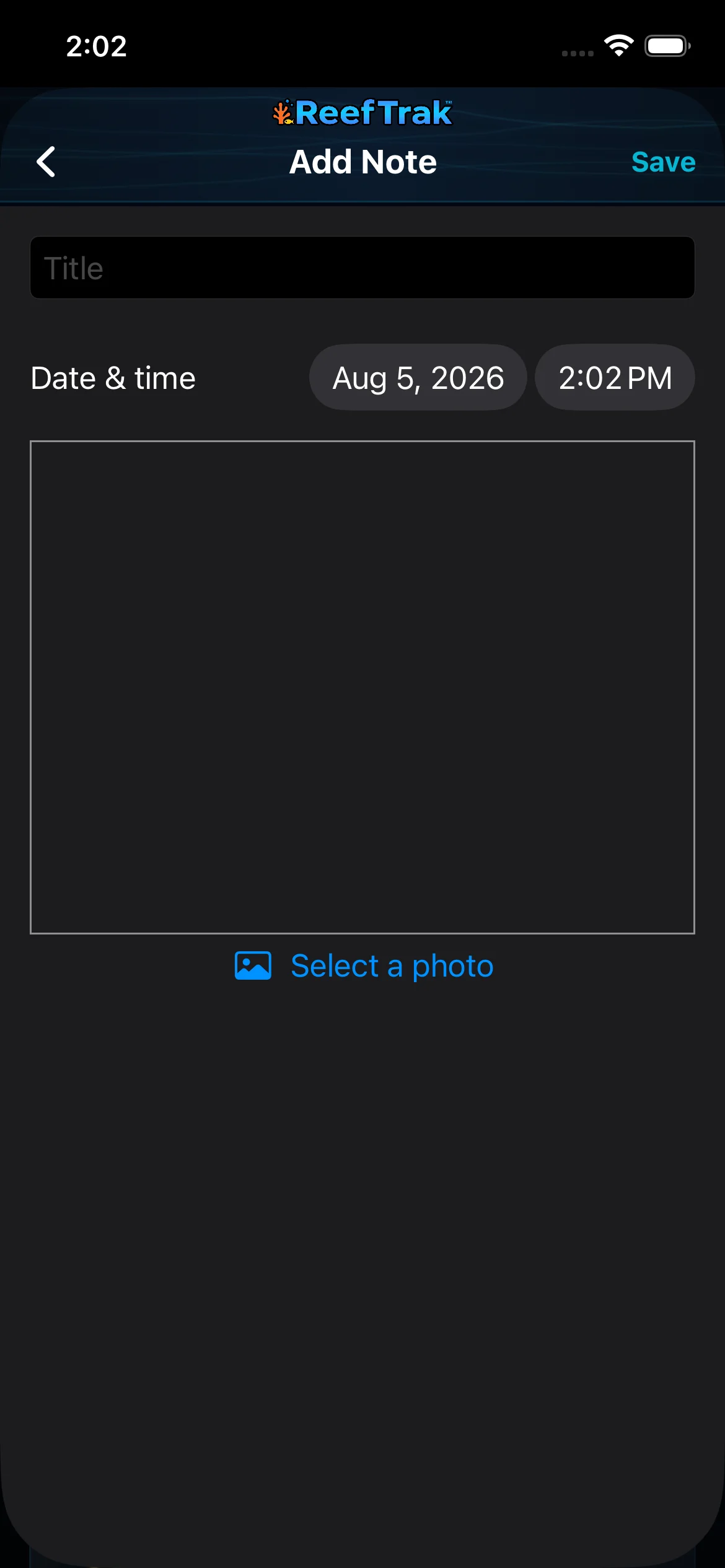
- Notes stores a title, editable date and time, written observation, and optional photo for the selected tank.
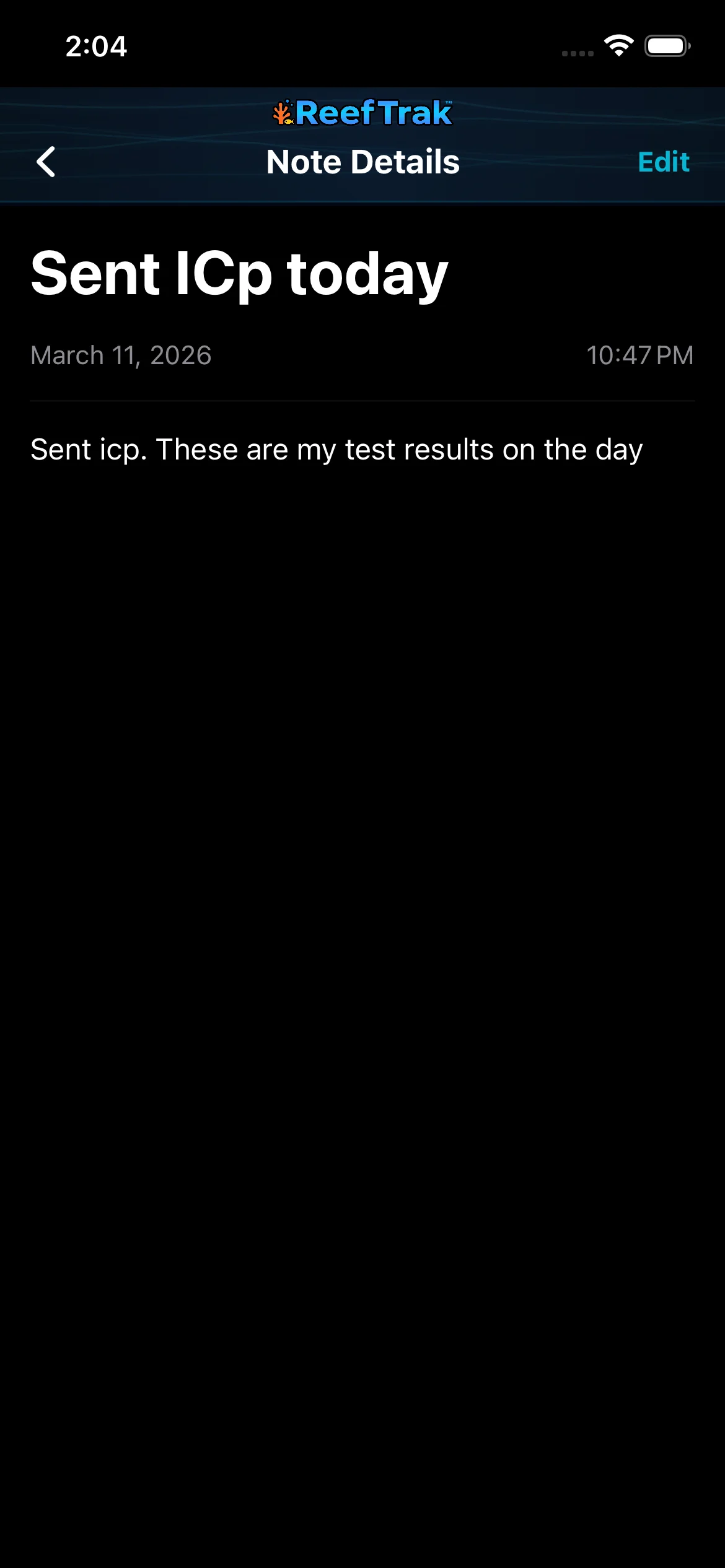
- Saved notes can be opened and edited so corrections stay on the original record instead of fragmenting one observation across duplicates.
- Notes can be found from tank tools and tank search, and can contribute context to Activity Log, reports, and TrakAI exports where supported.
Why you would use it
Many important aquarium changes are qualitative: a coral closed, a fish refused food, water looked cloudy, a pump sounded different, or a treatment began. Dated notes preserve that context beside numerical tests so the later history is readable instead of mysterious.
How to use it
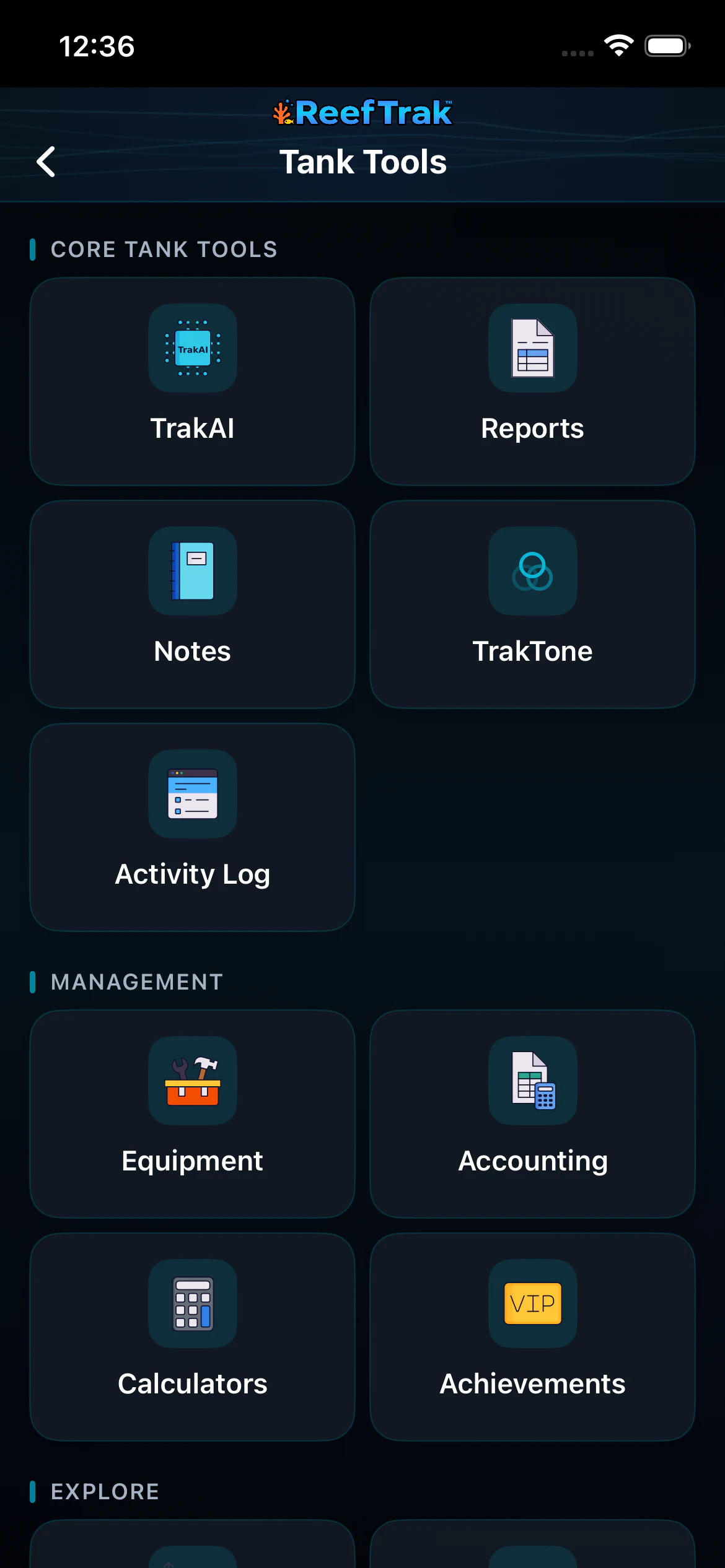
Start here: Start from the correct tank, choose Tank Tools, then select Notes from Core Tank Tools.
- Open the correct tank, choose Tank Tools, and select Notes.
- Choose Add and write a specific title that will still make sense months later.
- Set the date and time to when the observation occurred, especially when entering it after the fact.
- Describe what you saw, what changed, what was done, and what should be checked next without presenting a guess as a confirmed diagnosis.
- Attach one useful photo when visual evidence helps; avoid unrelated or duplicate images.
- Save the note, then open and edit the same record if its wording or timestamp needs correction.
Notes screenshots
This capture comes from the current Reef Trak interface. Numbered callouts identify the key controls; the text guide carries the full workflow.
 1
1
- Open Notes for the current tank.
 234
234
- Write a specific title and set the real observation date and time.
- Record the useful details, symptoms, change, or context in the note body.
- Attach a photo only when it helps document the observation.
 5
5
- Review the saved timestamp and content; use Edit to correct the same note instead of creating a duplicate.
Example
A keeper records that one torch coral stayed closed after a pump adjustment, adds the actual observation time and a photo, and notes the flow change. Later tests and maintenance can be reviewed beside that observation without rewriting it as a diagnosis.
Important details
- Notes are tank-specific; confirm the selected aquarium before saving.
- A note records an observation or action. It does not establish medical, chemical, or mechanical causation by itself.
- Photos may sync with the account’s cloud data where supported. Avoid attaching anything that should not be part of the aquarium record.
Notes frequently asked questions
When was Notes introduced in Reef Trak?
Notes was first documented in Reef Trak on July 17, 2025. The supporting chronology identifies it as a public ios 1.3 release.
What should I write in a reef tank journal?
Record specific observations, changes, actions, and follow-up needs with the real date and time. Useful examples include animal behavior, coral appearance, cloudy water, equipment noise, treatment starts, or unusual events.
Can Reef Trak attach a photo to an aquarium note?
Yes. The note composer provides an optional photo control so visual evidence can stay with the written observation.
Can I backdate or edit a Reef Trak note?
Yes. The composer exposes the note date and time, and a saved note can be reopened through its detail screen and edited.
Are reef tank notes searchable?
Notes are available from the tank’s Notes module and are included in the tank search pipeline where supported, making older observations easier to find.
Open in Reef Trak
The button opens this destination when the installed app supports it. The browser fallback offers only platforms where the current inventory confirms availability.